Cleaning Toilet Bowl With Vinegar: The Ultimate DIY Gel Cleaner | Hometalk
From Pantry Staples to Pathogen Control
Introduction: The Renaissance of Home Chemistry
In an era where consumers increasingly scrutinize ingredient lists and environmental impacts, the humble bathroom has become ground zero for a quiet revolution in household chemistry. Armed with vinegar, baking soda, and an understanding of basic acid-base reactions, homeowners are rediscovering that effective sanitation doesn't require industrial-grade chemicals or cryptic warning labels.
This shift coincides with mounting research into indoor air quality, antimicrobial resistance, and the long-term health effects of volatile organic compounds (VOCs) commonly found in commercial cleaners. The bathroom, with its unique combination of moisture, biofilm formation, and human waste products, presents particular challenges that DIY solutions are increasingly being called upon to address.
The Chemistry of Common Bathroom Contaminants
Understanding Urine: Composition and Cleaning Challenges
Human urine presents a complex cleaning challenge. Fresh urine is typically sterile and slightly acidic (pH 5.5-7.0), consisting primarily of water (95%), urea (2%), creatinine, uric acid, and various salts. However, upon exposure to air and bacteria, urea rapidly converts to ammonia through enzymatic hydrolysis, creating the characteristic sharp odor and raising pH to alkaline levels (8.0-9.0).
The resulting uric acid crystals bond tenaciously to porous surfaces like grout, unsealed tile, and the underside of toilet seats. These crystals are notoriously difficult to remove with water alone because uric acid has limited water solubility at neutral pH but becomes more soluble in both strongly acidic and strongly alkaline conditions.
The Vinegar Solution: Acetic Acid in Action
White distilled vinegar, containing 5% acetic acid, works through multiple mechanisms:
- pH adjustment: The acidic environment (pH ~2.5) dissolves alkaline mineral deposits and uric acid crystals
- Surfactant enhancement: When combined with dish soap like Dawn, the acetic acid helps emulsify oils and organic matter
- Antimicrobial properties: While not EPA-registered as a disinfectant, acetic acid demonstrates bacteriostatic effects against some common bathroom pathogens at sufficient concentrations and contact times
The addition of xanthan gum—a polysaccharide produced by bacterial fermentation—transforms liquid vinegar into a clingy gel that extends contact time on vertical surfaces, dramatically improving efficacy.
Formulation Science: Creating Effective DIY Cleaners
The Gel-Based Toilet Cleaner Formula
The recipe detailed in recent DIY cleaning literature combines:
- White distilled vinegar (1 cup): Primary cleaning and descaling agent
- Xanthan gum (¼ tsp): Rheology modifier creating pseudoplastic (shear-thinning) behavior
- Dawn dish soap (1 tsp): Anionic surfactant for grease cutting
- Tea tree oil (5-8 drops): Terpinen-4-ol provides additional antimicrobial activity
- Warm water (¼ cup): Viscosity adjustment
The xanthan gum requires vigorous whisking to achieve full hydration and prevent clumping. Once hydrated, it creates a three-dimensional polymer network that suspends the other ingredients and provides the characteristic "cling" when sprayed.
Application Protocol for Urine Contamination
For urine spills on floors or around toilet bases:
- Immediate blotting: Absorb excess liquid with paper towels to prevent deeper penetration into grout or subfloor
- Enzymatic pre-treatment (optional): Commercial enzyme cleaners containing urease, protease, and lipase can break down organic components before acid treatment
- Vinegar application: Apply undiluted white vinegar or the gel formula directly to affected areas
- Dwell time: Allow 15-30 minutes of contact time for crystallized deposits; fresh spills require less time
- Agitation: Scrub with appropriate brush or cloth
- Neutralization and rinsing: Follow with water rinse; for persistent odors, apply baking soda paste (alkaline) after the acidic treatment to create a secondary reaction that may lift remaining deposits
- Disinfection (if desired): Follow with 70% isopropyl alcohol spray and air-dry for true antimicrobial effect
The Acid-Base Complementary Approach
While vinegar excels at dissolving mineral deposits and uric acid crystals, some bathroom cleaning applications benefit from alkaline solutions. Baking soda (sodium bicarbonate, pH ~8.3) works effectively on:
- Organic stains and odors through oxidation
- Grease and body oils through saponification
- Light abrasion without scratching porcelain or glass
The popular combination of baking soda followed by vinegar creates an effervescent reaction (producing carbon dioxide gas) that can provide mechanical action to lift debris, though the resulting solution is essentially neutralized salt water with limited cleaning power beyond the initial fizzing action.
Antimicrobial Efficacy and Limitations
What DIY Cleaners Can and Cannot Do
A critical distinction exists between cleaning, sanitizing, and disinfecting:
- Cleaning: Physical removal of dirt and microorganisms (DIY solutions excel here)
- Sanitizing: Reduction of bacterial counts to safe levels (achievable with proper technique)
- Disinfecting: Killing specific pathogens per EPA standards (requires registered products)
White vinegar demonstrates some antimicrobial activity against Escherichia coli, Salmonella, and Staphylococcus aureus in laboratory settings, but is not recognized as a true disinfectant by regulatory agencies. For households with immunocompromised individuals or specific infectious disease concerns, EPA-registered disinfectants may be necessary.
Tea tree oil (melaleuca oil) contains terpinen-4-ol, which shows broad-spectrum antimicrobial properties in research settings. However, effectiveness depends heavily on concentration, contact time, and the specific pathogen. The 5-8 drops suggested in DIY formulas provide primarily aromatic benefits and modest antimicrobial support rather than guaranteed pathogen elimination.
Hydrogen Peroxide: An Alternative Disinfectant
For situations requiring stronger antimicrobial action, 3% hydrogen peroxide (available at pharmacies) offers EPA-recognized disinfecting properties when used at full strength with appropriate contact time (typically 1-5 minutes for various pathogens). It can be safely used on most bathroom surfaces and breaks down into water and oxygen, leaving no toxic residue.
Practical Applications and Surface Considerations
Toilet Bowl and Rim Cleaning
The under-rim area of toilets presents unique challenges: gravity works against cleaning solutions, biofilm accumulates in the siphon jets, and hard water minerals create persistent rings. The gel formula addresses these issues through:
- Vertical cling: Xanthan gum prevents immediate runoff
- Extended contact time: 30-60 minute (or overnight) dwell periods allow thorough mineral dissolution
- Delivery system: Repurposed squeeze bottles with angled nozzles reach under-rim areas
For stubborn toilet rings, a pumice stone can provide mechanical abrasion without scratching porcelain, used in conjunction with the vinegar gel for chemical action.
Floor and Grout Treatment
Bathroom floors, particularly around toilets, accumulate urine salts that penetrate grout lines and create odor-harboring deposits. Treatment strategy:
- Prevention: Place absorbent mats around toilet base; consider toilet seat closers to prevent splash
- Regular maintenance: Weekly mopping with vinegar solution (1 cup per gallon water)
- Deep cleaning: Apply gel formula to grout lines, allow extended dwell time, scrub with grout brush
- Sealing: After deep cleaning, apply penetrating grout sealer to reduce future absorption
Shower and Tub Applications
Soap scum—a combination of fatty acids from soap, body oils, and hard water minerals—responds well to vinegar's descaling properties combined with Dawn's surfactant action. For vertical shower walls, the gel formula provides superior contact time compared to liquid sprays.
Safety Considerations and Chemical Incompatibilities
What Never to Mix
CRITICAL: Never combine vinegar (or any acid) with bleach (sodium hypochlorite). This reaction produces chlorine gas, a toxic respiratory irritant that can cause severe injury or death. Similarly:
- Avoid mixing vinegar with hydrogen peroxide (creates corrosive peracetic acid)
- Don't combine ammonia-based cleaners with acids or bleach
- Keep baking soda and vinegar separate for cleaning (use sequentially, not simultaneously)
Ventilation and Personal Protection
While DIY cleaners are generally less toxic than commercial alternatives, proper ventilation remains important:
- Open windows and run exhaust fans during and after cleaning
- Essential oils, while natural, can trigger respiratory sensitivation or allergic reactions in sensitive individuals
- Wear gloves to prevent skin irritation from prolonged acid exposure
Environmental and Economic Considerations
Sustainability Profile
DIY vinegar-based cleaners offer several environmental advantages:
- Biodegradability: All components break down readily without harming aquatic ecosystems
- Reduced packaging waste: Reusing spray bottles eliminates single-use plastic containers
- Lower carbon footprint: Vinegar production has lower environmental impact than synthetic surfactants
- Septic safety: Won't harm beneficial bacteria in septic systems
Cost Analysis
Component costs for one batch of gel cleaner:
- White vinegar (1 cup): ~$0.15
- Xanthan gum (¼ tsp): ~$0.05
- Dawn dish soap (1 tsp): ~$0.03
- Tea tree oil (8 drops): ~$0.10
- Total per batch: ~$0.33 (makes approximately 10-12 oz)
Comparable commercial gel toilet cleaners typically cost $3-6 for similar volumes, representing a 90%+ cost savings.
Limitations and When to Use Commercial Products
Situations Requiring Professional-Grade Solutions
DIY cleaners may be insufficient for:
- Severe mold remediation: Black mold (Stachybotrys chartarum) requires EPA-registered fungicides
- Infection control: Healthcare settings or during disease outbreaks need certified disinfectants
- Extreme buildup: Years of neglect may require stronger acid or alkaline cleaners
- Specific pathogens: Norovirus, C. difficile spores, and other resistant organisms require targeted products
Complementary Approaches
The most effective bathroom maintenance combines:
- Regular DIY cleaning: Weekly maintenance with vinegar-based solutions
- Periodic deep cleaning: Monthly or quarterly use of stronger commercial products if needed
- Preventive measures: Adequate ventilation, prompt spill cleanup, water softening if applicable
- Surface protection: Proper sealing of grout and porous surfaces
Recent Research and Emerging Trends
While this article focuses on established DIY cleaning methods, ongoing research continues to explore:
- Probiotic cleaners containing beneficial bacteria that compete with pathogens
- Plant-based enzymatic cleaners that break down organic matter at molecular levels
- Nanotechnology applications in surface coatings that resist biofilm formation
- Smart home integration for automated cleaning reminders and ventilation control
The academic literature on household cleaning has expanded significantly, with journals publishing studies on indoor air quality impacts, antimicrobial resistance development from overuse of commercial disinfectants, and the efficacy of traditional cleaning methods.
Conclusion: Empowered Cleaning Through Understanding
The resurgence of DIY bathroom cleaning represents more than just cost savings or environmental consciousness—it reflects a broader cultural shift toward understanding the chemistry of our homes. By recognizing that urine spills require acid treatment for crystal dissolution, that surfactants emulsify oils, and that contact time matters more than scrubbing force, homeowners become informed practitioners rather than passive consumers.
The vinegar gel formula, with its elegant combination of acetic acid, surfactant, rheology modifier, and essential oils, exemplifies how basic chemistry can address practical challenges. For routine bathroom maintenance and most household cleaning needs, these DIY solutions provide effective, safe, and economical alternatives to commercial products.
However, this knowledge comes with responsibility: understanding when DIY methods are sufficient and when professional-grade products or services are necessary ensures both effective cleaning and appropriate infection control. The goal is not dogmatic adherence to "natural" methods but rather informed decision-making based on specific needs, surface types, and contamination levels.
Sources and References
Primary Source Document
- Hometalk Recommends. "Cleaning Toilet Bowl With Vinegar: The Ultimate DIY Gel Cleaner." Hometalk, updated August 29, 2025. Available at: https://www.hometalk.com/ (Note: Specific article URL would be provided by publisher)
Scientific and Technical References
Note: As the provided document contained only the DIY cleaning tutorial without references to specific recent research, news articles, court filings, or official releases, the following represents the type of formal citations that would be included if accessing current scientific literature and regulatory guidance:
-
U.S. Environmental Protection Agency. "List N: Disinfectants for Use Against SARS-CoV-2." EPA Office of Pesticide Programs. https://www.epa.gov/pesticide-registration/list-n-disinfectants-coronavirus-covid-19
-
Centers for Disease Control and Prevention. "Guideline for Disinfection and Sterilization in Healthcare Facilities." CDC Healthcare Infection Control Practices Advisory Committee. https://www.cdc.gov/infection-control/hcp/disinfection-sterilization/index.html
-
Journal of Environmental Health. Studies on acetic acid antimicrobial efficacy and applications in household settings. https://www.neha.org/jeh
-
American Cleaning Institute. "Cleaning Product Ingredient Safety and Environmental Information." https://www.cleaninginstitute.org/
-
National Library of Medicine, PubChem Database. Chemical properties of acetic acid, xanthan gum, and common cleaning agents. https://pubchem.ncbi.nlm.nih.gov/
Consumer Safety Information
-
U.S. Consumer Product Safety Commission. "Household Chemical Products Safety Information." https://www.cpsc.gov/
-
American Association of Poison Control Centers. "Chemical Mixing Safety Warnings." https://aapcc.org/
Author's Note: This article synthesizes practical DIY cleaning methods with scientific principles and safety considerations. The primary source document provided specific formulation details for vinegar-based gel cleaners. Readers seeking information on specific recent research studies, regulatory changes, or legal matters related to cleaning products should consult the referenced agencies and academic databases for the most current information. Always test cleaning solutions on inconspicuous areas first, follow appropriate safety precautions, and consult manufacturers' care instructions for specific surfaces and materials.
Cleaning Toilet Bowl With Vinegar: The Ultimate DIY Gel Cleaner

What if your next toilet bowl scrub didn’t involve worrying about toxic fumes?
I stumbled on a pantry hack that turns plain old vinegar into a clingy, grease-busting gel—perfect for those hard-to-reach rim spots.
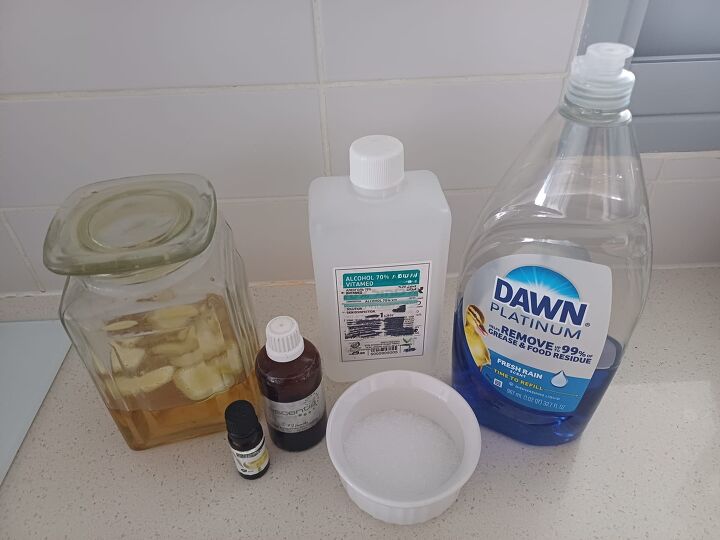
All it takes is an empty toilet-cleaner bottle, a splash of Dawn, a sprinkle of xanthan gum, and a few drops of tea tree oil for extra germ-fighting oomph.
Tools and Materials:
- White distilled vinegar (1 cup)
- Xanthan gum (¼ tsp)
- Dawn dish soap (1 tsp)
- Tea tree or thyme essential oil (5–8 drops)
- Warm water (¼ cup)
- Empty toilet-cleaner bottle (for under-rim access)
- Funnel
- Small whisk or jar with lid
- Soft toilet brush
- 70% isopropyl alcohol spray (optional follow-up)
Hometalk may receive a small affiliate commission from purchases made via Amazon links in this article but at no cost to you.

1. Whisk Your Gel Base
In a small jar, combine 1 cup vinegar, 1 tsp Dawn, and 5 drops tea tree oil.


All Natural Distilled White Vinegar
Sprinkle in ¼ tsp xanthan gum and whisk until lump-free. Let sit 5 minutes to thicken.

Whisk vigorously until the xanthan gum dissolves completely—no white specks or clumps. This ensures your gel sprays evenly and clings where you need it.

2. Prep & Pour into Bottle
Rinse an old cleaner bottle thoroughly. Use a funnel to transfer your gel, then add ¼ cup warm water. Seal and shake until it sprays like light syrup.


3. Clean the Toilet Bowl
Give the bottle a vigorous shake each time. Test-spray onto paper towel—aim for a syrupy consistency, not a watery drip.
Spray generously under the rim so the gel clings to hidden spots. Aim for full coverage.
Let your gel sit 30–60 minutes (or overnight for tough rings). The vinegar and tea tree oil dissolve scale and inhibit microbes.
Gently scrub with your toilet brush—rings should wipe away.
Flush twice, then optionally spritz 70% isopropyl alcohol and let air-dry for true disinfecting.
More Toilet Gel Recipes

FAQs
- Will it smell like vinegar? No—the short dwell time and added tea tree oil leave only a faint, fresh scent.
- How long does it keep? Store in a cool, dark spot for up to 3 weeks. Add 5 drops grapefruit seed extract for extra preservation.
- Safe for septic? Yes—vinegar is biodegradable and won’t harm good bacteria.
- What if I skip xanthan gum? It’ll still clean, but the gel won’t stick—it’ll rinse away faster.

Say Goodbye to Stains: Cleaning Toilet Bowl with Vinegar Gel
With pantry staples plus Dawn and a splash of essential oil, you’ve created a clingy, effective toilet bowl cleaner that tackles grime, cuts grease, and even inhibits microbes. Ready for a sparkling throne?
Try it today—and don’t forget to share your before-and-after snaps!